Migrating and Backing Up a Source-Installed Passbolt CE from Ubuntu Server to a Proxmox LXC

Passbolt Community Edition is frequently deployed first on a traditional **Ubuntu Server**—either bare metal or a VM—before being consolidated into a **Proxmox LXC container** for better density, snapshots, and lifecycle management.

The migration path is straightforward *if* backups are done correctly.

This article documents a **safe, deterministic backup strategy** for a **source-installed Passbolt CE instance on Ubuntu Server 22.04**, designed specifically so the backup can be **restored into a Proxmox LXC** created with the official helper script:

https://community-scripts.github.io/ProxmoxVE/scripts?id=passbolt

The goal is not just to back up Passbolt—but to ensure **cryptographic continuity**, so existing secrets remain decryptable after the move.
Continue reading “Migrating and Backing Up a Source-Installed Passbolt CE from Ubuntu Server to a Proxmox LXC”
Best practices for PC security in 2023

In 2023, PC security is more important than ever before. With more people than ever working from home and relying on their computers for communication and entertainment, it’s critical to be vigilant about protecting your PC from cyber threats. In this blog post, we’ll explore some of the best practices for PC security in 2023.

1. Keep Your Software Up-to-Date Continue reading “Best practices for PC security in 2023”

Zoom + Clio Integration

How to add Zoom meeting details through Clio and assign Alternative Host

The Clio + Zoom integration adds a checkbox on Clio’s new calendar event create page that will automatically add Zoom meeting details to the calendar “Description” / Notes.  However, Clio automatically uses the logged in user as the default Zoom meeting host and not the Zoom account of the Clio user listed under “Save to this calendar”.  This requires a second step when staff calendar an event for their superiors by opening Zoom and adding an “Alternative Host”.

Full instructions for setting up and using Clio’s Zoom Integration can be found on Clio’s Help Center here: Continue reading “Zoom + Clio Integration”

ubuntu 16.04 certbot acme v2

Ran into an issue with my old Apache server SSL certificate.  Here is how I manually renewed my SSL cert.  Time to start migrating WordPress to my new Ubuntu VM server.

certbot renew –apache –agree-tos –force-renewal –server https://acme-v02.api.letsencrypt.org/directory –email EMAILADDRESS

Zoom + Logitech Rally

Turn TV on to HDMI 1

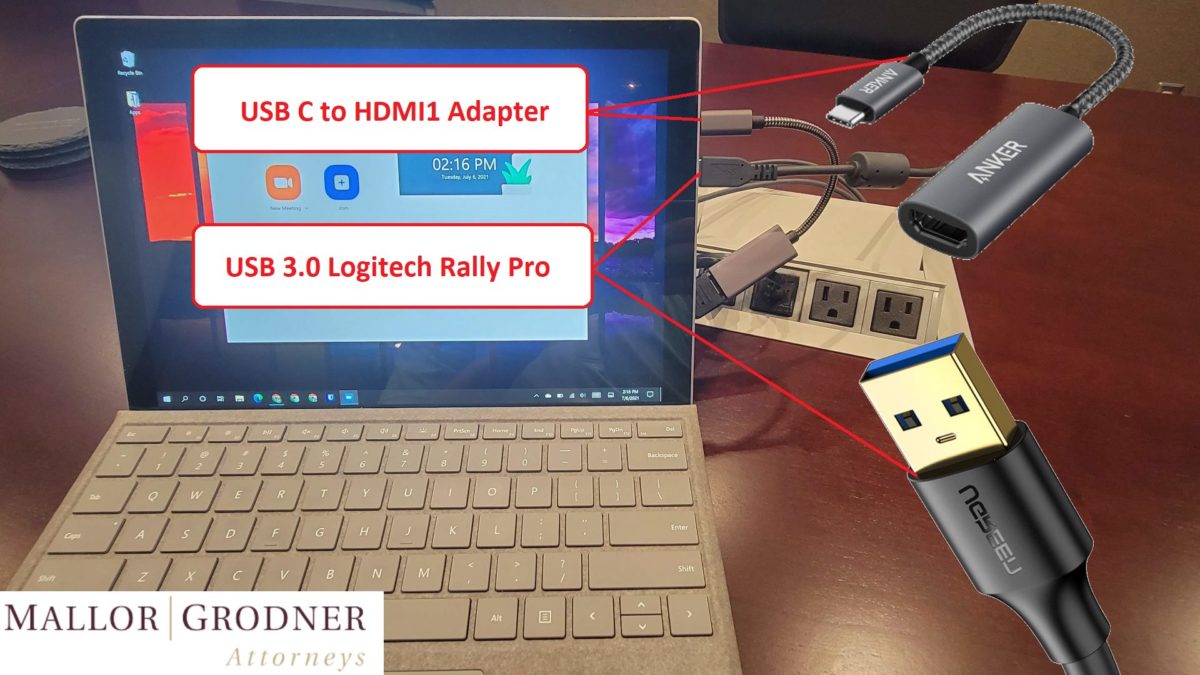
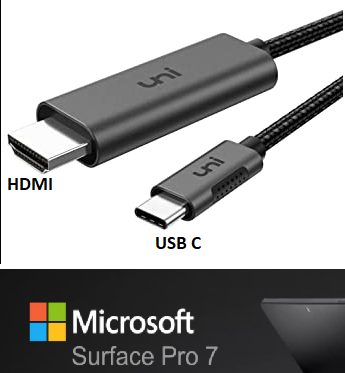
HDMI to USB C and USB 3

1. Connect USB Type A plug from Logitech Rally lead from table to your Surface Pro 7
2. Connect HDMI1 to USB C Adapter (Surface Pro 5 uses MiniDP)
3. Zoom Audio Settings
a. Select a Microphone: Echo Cancelling Speakerphone (Logi Rally Audio)
b. Select a Speaker: Echo Cancelling Speakerphone (Logi Rally Audio)
4. Zoom Video Settings
a. Select a Camera: Logi Rally Camera
b. Select a Virtual Background: QR code Mallor | Grodner
5. Microsoft Teams
a. Start an empty meeting (optional after 1st time)
b. Settings > Computer Audio > Device Settings
i. Audio Devices: Logi Rally Audio
ii. Speaker: Echo Cancelling Speakerphone (Logi Rally Audio)
iii. Microphone: Echo Cancelling Speakerphone (Logi Rally Audio)
iv. Camera: Logi Rally Camera Continue reading “Zoom + Logitech Rally”

Share Files and Folders in Google Drive with View Only Temporary Access

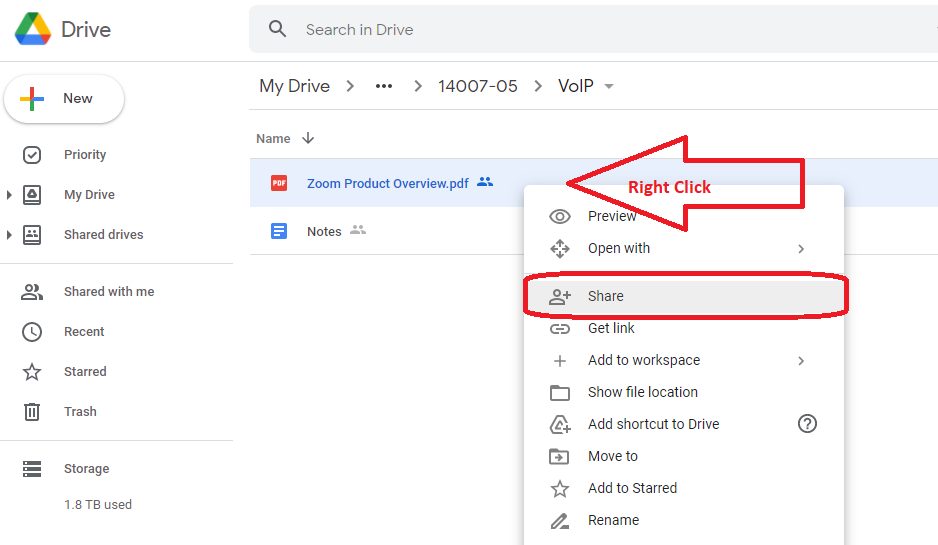
Google Drive allows the setting a time limit for temporary access to shared files.  Creating a share in Google Drive defaults to EDITOR access with no time limit.  We must manually change the EDITOR permissions to VIEWER, SEND the share invitation, and then go into the “SHARE” menu a second time to “GIVE TEMPORARY ACCESS”.

  • Open Google Drive web site https://drive.google.com
  • Navigate to the file or folder to be shared
  • Right click the file or folder and choose “Share”

RightClick-Share

Continue reading “Share Files and Folders in Google Drive with View Only Temporary Access”

CompTIA Security+ ce Certification

Earners of the CompTIA Security+ certification have the knowledge and skills necessary to perform core security functions required of any cybersecurity role. CompTIA Security+ professionals know how to identify and address potential threats, attacks and vulnerabilities and they have established techniques in risk management, risk mitigation, threat management and intrusion detection.

This badge was issued to Nicholas Shertzer on 19 December 2019.

Expires on 19 December 2022